
Introduction
If you’re running a Shopify store, you already know that standing out is everything. A standard theme might get you started, but it won’t always give you the flexibility needed to grow. That’s where custom pages in Shopify come in.
From tailored landing pages to fully optimised product layouts, creating custom pages in Shopify allows you to control how your brand is presented, how users navigate your store, and ultimately how well you convert visitors into customers.
In this guide, we’ll walk you through everything you need to know from basic setup to advanced optimisation, so you can build pages that not only look good but also perform.
A Step-by-Step Guide to Creating a Custom Page in Shopify
Creating a custom page isn’t as technical as it sounds, especially with Shopify’s built-in tools.
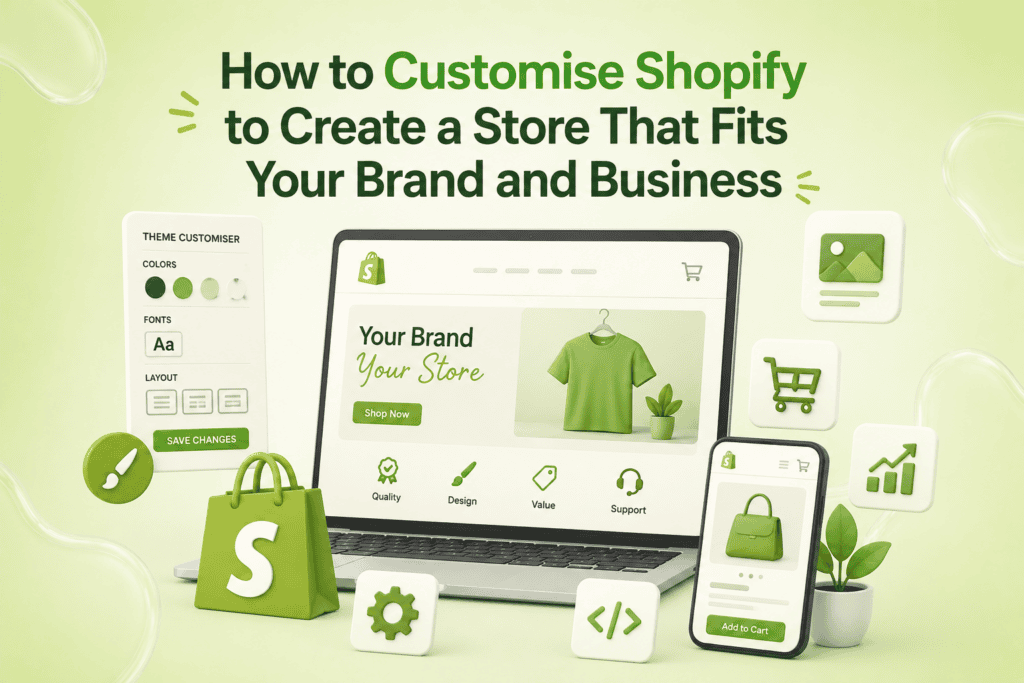
Step 1: Create a New Page Template in the Theme Customiser
To begin, you’ll need a unique template:
- Go to Online Store → Themes
- Click Customise
- Use the dropdown and select Pages
- Click Create template
- Name your template (e.g. “custom-landing”)
This gives you a blank canvas specifically for your new page.
Step 2: Customise the Layout and Content of Your New Template
Now comes the creative part. You can:
- Add sections like banners, testimonials, or product grids
- Rearrange content blocks for better flow
- Include CTAs (Call-to-Actions) to improve conversions
Focus on:
- Clear headings (for SEO and readability)
- Visual hierarchy
- Mobile responsiveness
Step 3: Assign the Custom Template to a New or Existing Page
Once your template is ready:
- Go to Online Store → Pages
- Create a new page or edit an existing one
- Select your custom template under “Theme template”
Your custom design is now live.
How to Add Different Types of Pages on Shopify
Not all pages serve the same purpose. Here’s how you can build different types effectively:
Adding Basic Content Pages
These include About Us, Contact, or Policy pages.
Best practices:
- Keep content clear and concise
- Use proper heading structure (H1, H2, H3)
- Add internal links for SEO
Adding Product Pages
A custom product page in Shopify can significantly improve conversions.
| Element | Why It Matters |
| Product images | Builds trust and clarity |
| Descriptions | Helps SEO and informs buyers |
| Reviews | Boosts credibility |
| CTA buttons | Drives conversions |
Adding Collection Pages
Collection pages help users browse efficiently.
- Use filters and sorting options
- Add short SEO descriptions
- Highlight bestsellers
Adding Blog or FAQ Pages
Content pages support search engine optimisation and build authority.
- Answer common customer queries
- Use keywords naturally
- Keep content easy to scan
Adding Landing Pages for Promotions
Landing pages are built for campaigns and ads.
- Strong headline
- Focused messaging
- Clear CTA
- Minimal distractions
If you’re unsure how to structure these, working with a shopify web development company can help ensure everything is aligned for growth.
Optimising and Enhancing Shopify Custom Pages
Creating pages is only half the job. Optimisation is what drives results.
Mobile Responsiveness
Most users shop on mobile, so your pages must adapt perfectly.
- Use responsive layouts
- Avoid oversized images
- Ensure buttons are easy to tap
Page Speed and Load Times
Slow pages lose customers.
Quick wins:
- Compress images
- Reduce unnecessary apps
- Use lightweight themes
Accessibility (Alt Text, Heading Structure)
Accessibility improves both usability and SEO.
- Add alt text to all images
- Maintain proper heading structure
- Ensure readable font sizes
Advanced Customisation with Metaobjects
Shopify’s metaobjects feature allows you to go beyond standard content blocks.
You can create reusable content structures like:
- Product highlights
- Feature comparisons
- Custom FAQs
How to Create a Custom Page in Shopify with Metaobjects
Here’s a simplified approach:
- Go to Settings → Custom Data → Metaobjects
- Create a new definition
- Add fields (text, images, links)
- Connect it to your page template
This allows you to build dynamic and scalable pages without constant manual updates.
For more advanced setups, you may want to Hire Shopify Developer to fully utilise these capabilities.
Managing Page Settings, Visibility, and Navigation
Once your page is ready, make sure it’s accessible.
Key settings to check:
- Visibility: Publish immediately or schedule
- SEO settings: Add meta title and description
- URL structure: Keep it clean and keyword-focused
Navigation tips:
- Add pages to the main menu or footer
- Avoid cluttering navigation
- Prioritise high-conversion pages
Common Challenges and Solutions
Even experienced store owners face issues when creating custom pages in Shopify.
1. Limited Design Flexibility
Solution:
Use custom templates or page builder apps.
2. Poor Page Speed
Solution:
Optimise images and remove unnecessary scripts.
3. Low Conversions
Solution:
- Improve CTA placement
- Simplify layouts
- Test different designs
4. SEO Issues
Solution:
- Use relevant keywords like custom product page in Shopify naturally
- Optimise headings and meta tags
- Build internal links
Conclusion
Building custom pages in Shopify is one of the most effective ways to improve both user experience and business performance.
Whether you’re designing a custom product page in Shopify or launching a campaign landing page, the goal remains the same: create pages that are fast, accessible, and built for conversions.
By focusing on optimisation, mobile responsiveness, page speed, and SEO, you’re not just improving your store, you’re setting it up for long-term growth.
If you want to take things further, investing in expert support or advanced customisation can help you unlock the full potential of your Shopify store.

 Andy
Andy